How to automatically cut a reaction video from your voice, not by hand
Let your microphone decide. While you are quiet the video leads, from the moment you speak you lead, and the first and last seconds go to your intro. In ReactionCut that cut is already on the timeline when you open the last step, and every piece of it stays editable.
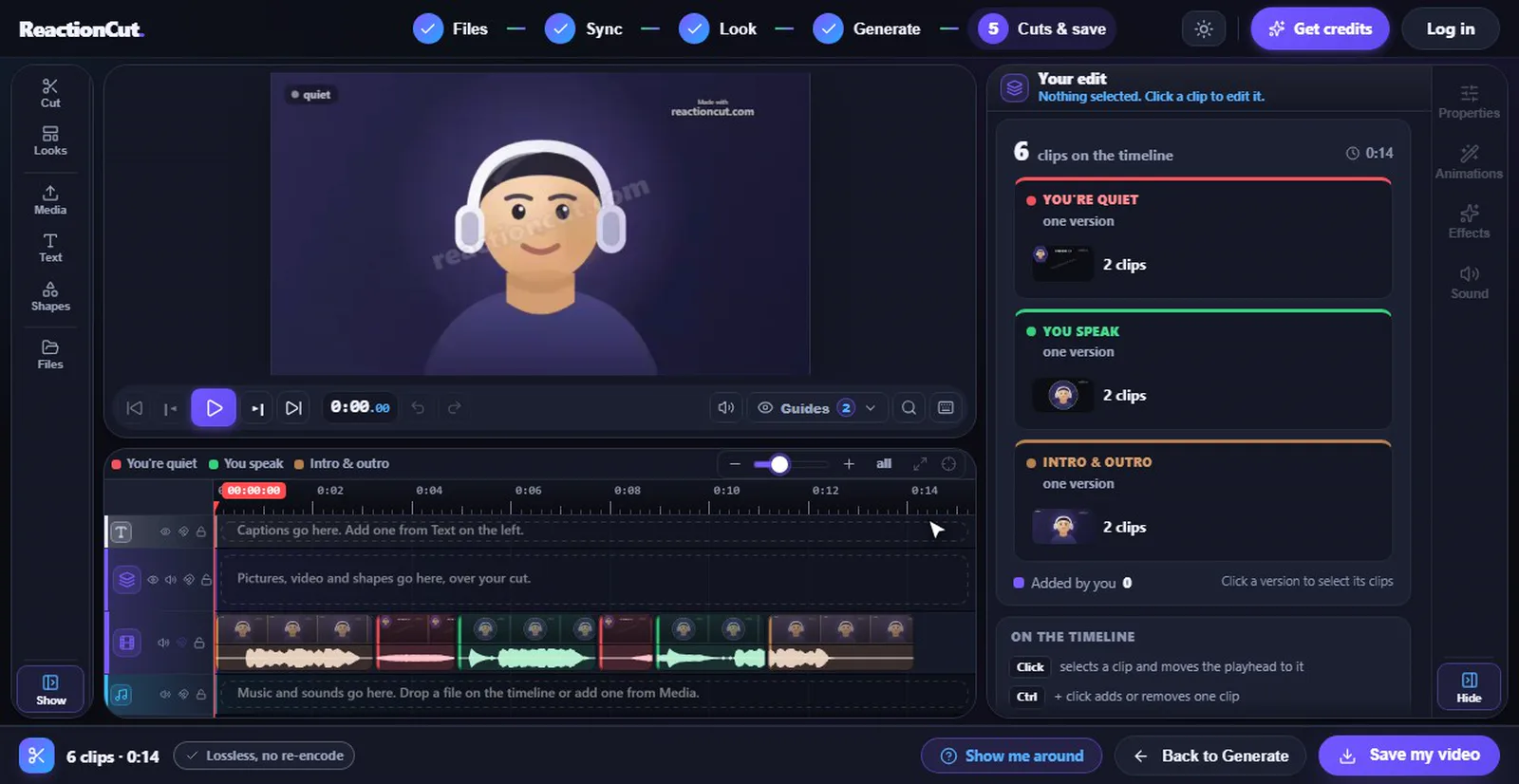
The demo project in the last step: six clips, placed from the microphone.
The rule
How it decides where to cut
Three moments, and your microphone picks between them. The colours are the ones the timeline uses.
introquietyou speakyou speakquietquietoutro
while you're quiet from the moment you speak start & end, just you optionalplaced automatically from your voice
Quiet: the video leadsWhile you say nothing, the clip takes the You’re quiet look, usually the video with your camera small.
Talking: you leadFrom the moment the microphone hears you, the clip takes the You speak look, usually you big.
Start and end: the introThe first and last seconds take the Intro & outro look, where your camera is on its own.
Measured, not guessed
The line is taken from your own recording
Before it cuts, the editor reads your whole microphone track. The quietest part is your room, the loudest part is your voice, and the line between quiet and talking goes just above the room. A fixed number would be too eager in a noisy room and deaf to someone who talks softly. If the recording has no clear quiet and loud parts, it falls back to a standard value you can move yourself.
No clipped words
Talking reaches a little past the words
Every stretch of talking is extended by a quarter of a second into the quiet on either side, so the camera is on you before the first word and stays for the last one. The cut never lands in the middle of a syllable.
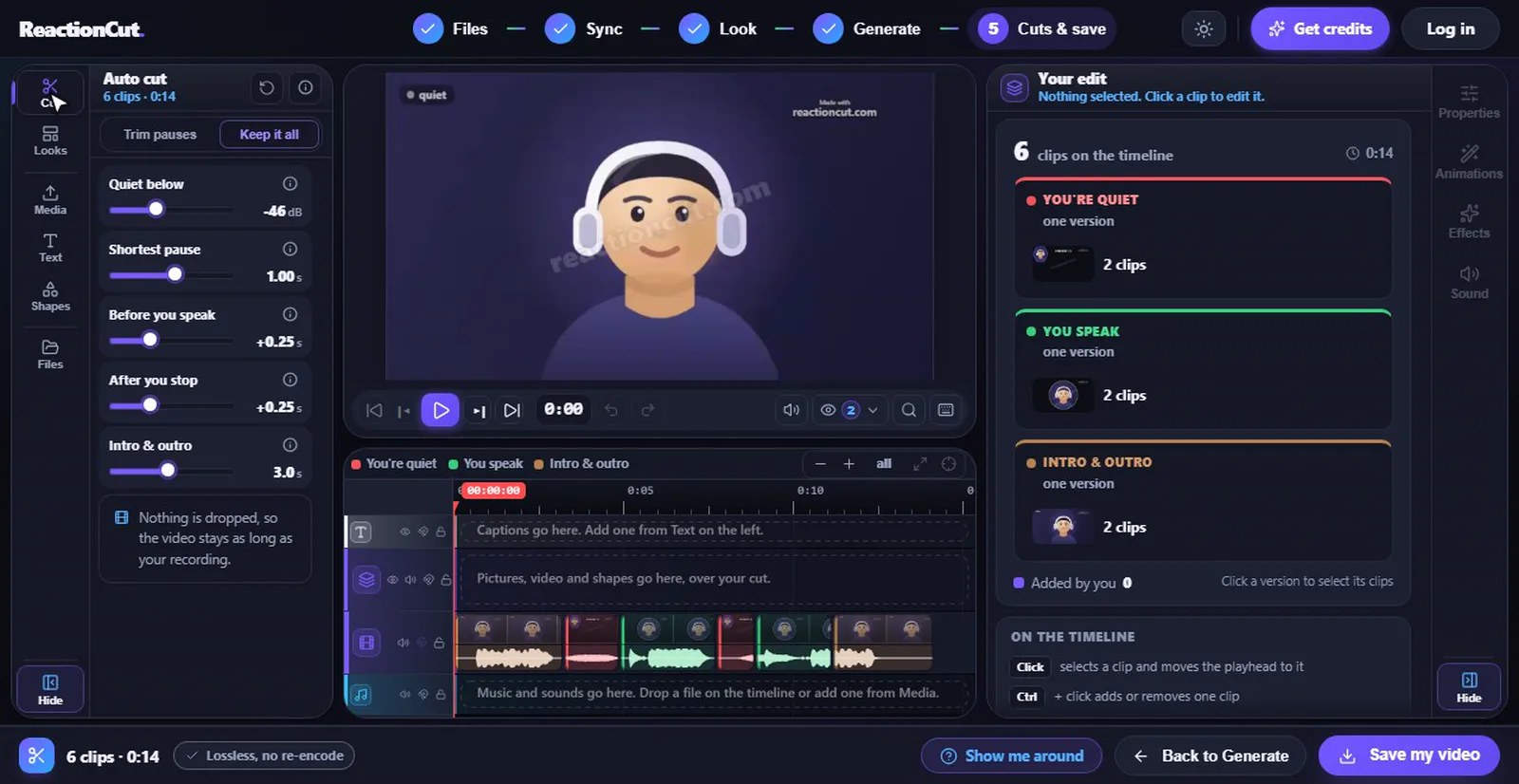
Auto cut panel
The seven sliders
They sit under Cut on the left of the last step, named exactly as below. Most projects never need them; they are there for the one that does.
The Auto cut panel on the demo project. Every slider has an i next to it that explains it in the editor too.
Quiet below dB
The line between talking and a pause. It starts at a value measured from your own recording, not a fixed number. Lower it if soft words get cut off; raise it if room noise counts as talking.
Shortest pause s, 1 by default
A pause shorter than this stays part of your talking, so a breath or a short thinking pause does not flip the layout back to the video.
Before you speak s added, 0.25 by default
Your talking clip starts this much earlier than your voice, so the layout changes just before the first word instead of on it.
After you stop s added, 0.25 by default
Your talking clip stays on this much longer after your last word, so a laugh or a look after the sentence is still yours. A pause shorter than both together disappears.
Intro & outro s, 3 by default
The first and last seconds of the finished video go to your intro look. The same length in both cuts, and zero switches the intro and outro off.
Longest pause s, 5 by default
A quiet stretch longer than this is shortened to this length. The end of the stretch is the part that stays, the seconds right before you speak, so the build-up survives.
Shortest clip s, 0.5 by default
A piece shorter than this is dropped. It measures the piece as it will be on the timeline, after trimming.
Two kinds of cut
Trim pauses or Keep it all
One switch above the sliders, and the two answer different videos.
Trim pauses
A tighter video
Quiet stretches are shortened to the length on Longest pause, and pieces shorter than Shortest clip are dropped. The finished video is shorter than your recording. It suits highlights, trailers and most reactions to long footage.
Keep it all
The whole watch-along
Nothing is dropped and nothing is shortened: the video is exactly as long as your recording, and only the layout changes when you talk. It suits full episode and movie watch-alongs, where viewers want to watch along with you. The last step opens here, so nothing is cut away until you choose Trim pauses.
Silence in a reaction is not dead air
Removing silent parts from a reaction video
A silence remover built for talking-head videos deletes every pause and closes the gap. On a reaction that is the wrong tool: the stretch where you are silent is exactly where the video plays, and deleting it deletes the thing you are reacting to.
So ReactionCut does two different things with quiet. Short pauses in your talking are ignored (Shortest pause). Long quiet stretches are shortened, not removed: with Trim pauses on, a two-minute stretch where you only watch becomes the last few seconds before you speak again, so the moment you react to keeps its build-up. Set Longest pause low for a tight cut, or high to let scenes breathe.
Red clips are the quiet stretches that survived trimming, green ones are you talking, gold ones the intro and outro.
Before you record
Getting a clean automatic cut
The cut is only as good as the voice it listens to.
Wear headphones
Through speakers your microphone hears the video, and a loud scene looks like you talking.
Keep your voice on its own track
Add your microphone as a separate file on the Files step, and the cut follows your voice only.
Speak at your normal level
Whispered asides sit close to the room noise. If they matter, lower Quiet below a few steps.
Sync first
The cuts are measured on your camera and placed on the video through the sync. A wrong sync puts right cuts on the wrong scene.
No. It does not transcribe anything. It measures how loud your microphone track is from moment to moment and decides where you are talking from that. That is also why it works in any language.
Does it work if my voice and the video’s sound are in one file?
Yes, but less precisely: a loud scene in the video can look like you talking. Record with headphones, or add your microphone as its own file on the Files step, and the cuts follow only your voice.
Can I remove the silent parts completely?
Trim pauses shortens every long quiet stretch to a length you set, down to very short. It does not delete them outright on purpose: in a reaction, the stretch where you are quiet is where the video plays, which is the thing you are reacting to.
What if it cuts in the wrong place?
Change that clip. Pick it on the timeline and give it another look with the number keys, drag its edge, split it or delete it. Moving the sliders cuts the main track again and keeps your own work: text, pictures, music, looks you picked by hand and fades stay on the same moment of the recording.
Does re-cutting cost another credit?
No. The credit is spent once, when a watermark-free generation finishes. Cutting, re-cutting and saving that video again are free, as is everything with a watermark.
See your own cut in a few minutes
Open the editor, add two recordings or the demo project, and the cut is waiting on the last step.